 ALKNETWORK
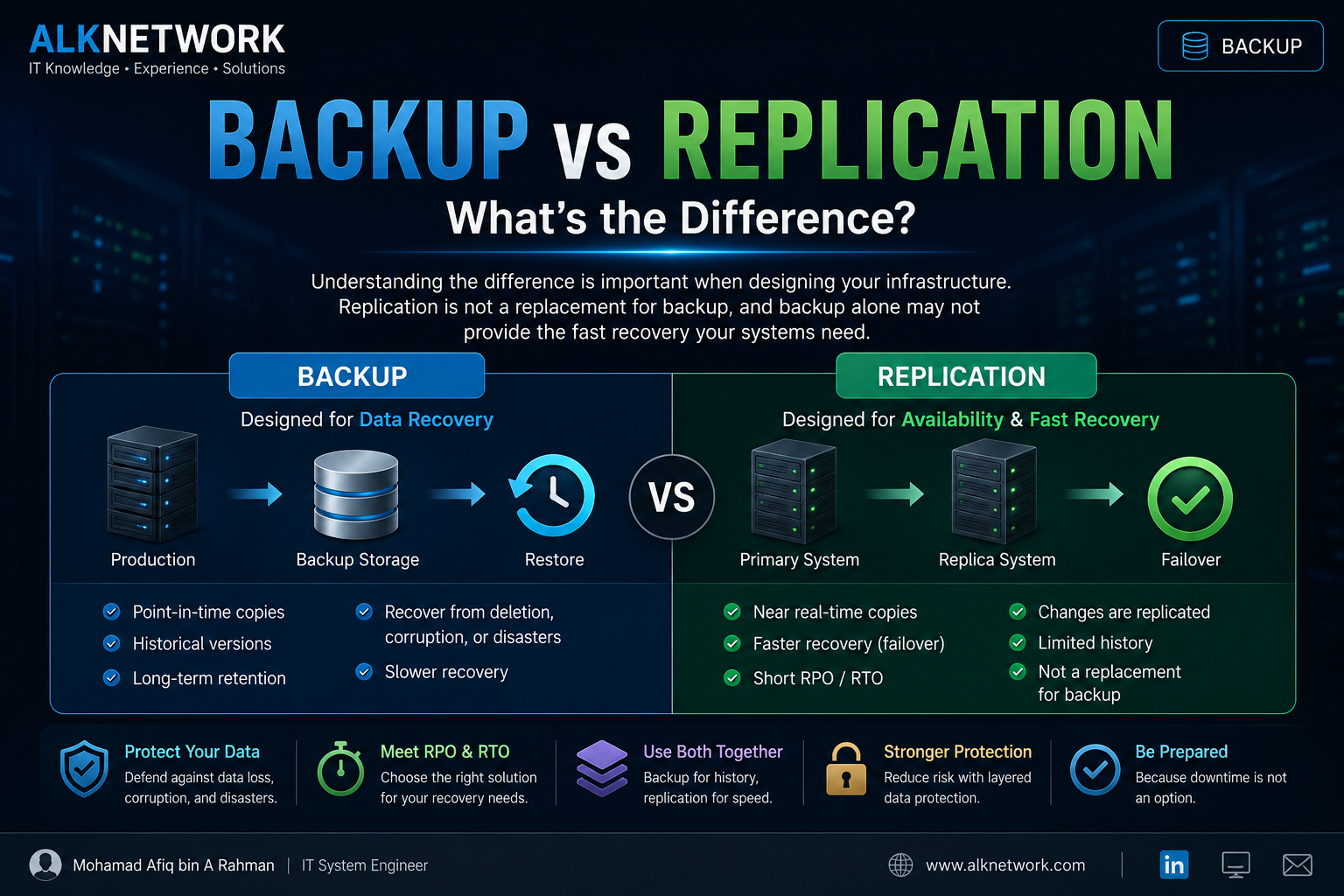
Production database, no backups scheduled. One bad migration or a dropped table by accident, and there's nothing to restore from.
PostgreSQL already ships with pg_dump, so a proper automated backup can be set up on Linux without installing extra backup software.
This guide sets up a daily backup, adds a timestamp to each filename, and deletes anything older than 7 days.
Prerequisites
Make sure the PostgreSQL client tools are installed:
pg_dump --version
On Ubuntu or Debian, install them if needed:
sudo apt update
sudo apt install postgresql-client
Example setup used in this guide:
Database: mydatabase
User: postgres
Backup directory: /var/backups/postgresql
Retention: 7 days
Swap these for your own values.
1. Create the Backup Directory
sudo mkdir -p /var/backups/postgresql
sudo chown $USER:$USER /var/backups/postgresql
sudo chmod 700 /var/backups/postgresql
2. Test a Manual Backup First
Before automating anything, confirm pg_dump actually works:
pg_dump -h 127.0.0.1 -U postgres -F c mydatabase > /var/backups/postgresql/test.dump
Check the result:
ls -lh /var/backups/postgresql/
You should see test.dump.
The -F c flag uses PostgreSQL's custom archive format, which can be restored later with pg_restore.
3. Create the Backup Script
sudo nano /usr/local/bin/postgres-backup.sh
Paste:
#!/bin/bash

BACKUP_DIR="/var/backups/postgresql"
DB_NAME="mydatabase"
DB_USER="postgres"
TIMESTAMP=$(date +"%Y-%m-%d_%H-%M-%S")

mkdir -p "$BACKUP_DIR"

pg_dump \
  -h 127.0.0.1 \
  -U "$DB_USER" \
  -F c \
  "$DB_NAME" \
  > "$BACKUP_DIR/${DB_NAME}_${TIMESTAMP}.dump"

find "$BACKUP_DIR" \
  -type f \
  -name "*.dump" \
  -mtime +7 \
  -delete
Make it executable:
sudo chmod +x /usr/local/bin/postgres-backup.sh
Run it manually:
/usr/local/bin/postgres-backup.sh
Verify:
ls -lh /var/backups/postgresql/
You should see something like mydatabase_2026-09-04_02-00-00.dump.
4. Skip the Password Prompt
The backup needs to run without asking for a password, otherwise cron can't complete it on its own.
nano ~/.pgpass
Add:
localhost:5432:mydatabase:postgres:YOUR_PASSWORD
Then lock down the file:
chmod 600 ~/.pgpass
Run the script again. It should finish without prompting for anything.
Never hardcode the database password inside the backup script itself.
One gotcha: without -h, PostgreSQL connects through a Unix socket, and the default local auth method on Ubuntu/Debian is usually peer, not password. That means .pgpass gets ignored and you'll hit a "Peer authentication failed" error. Adding -h 127.0.0.1 (as in the script above) forces a TCP connection instead, so .pgpass actually gets used.
5. Schedule It With Cron
crontab -e
To run every day at 2:00 AM:
0 2 * * * /usr/local/bin/postgres-backup.sh >> /var/backups/postgresql/backup.log 2>&1
Confirm it's saved:
crontab -l
That's it, PostgreSQL now backs itself up every day without anyone touching it.
6. Check Your Backups Are Actually There
ls -lh /var/backups/postgresql/
You can also peek inside an archive without restoring it:
pg_restore -l /var/backups/postgresql/mydatabase_2026-09-04_02-00-00.dump | head
This one just reads the archive file directly, so it doesn't need -h or a database connection at all. If PostgreSQL can read it, you'll see the table of contents.
7. Actually Test a Restore
A backup doesn't count as reliable until you've restored it at least once.
createdb -h 127.0.0.1 -U postgres restore_test
pg_restore \
  -h 127.0.0.1 \
  -U postgres \
  -d restore_test \
  /var/backups/postgresql/mydatabase_2026-09-04_02-00-00.dump
Check the data is actually there, then clean up:
dropdb -h 127.0.0.1 -U postgres restore_test
Wrap Up
At this point the backup system runs daily, timestamps every file, keeps the password out of the script, and clears anything older than 7 days on its own.
For most small Linux servers, that's a solid first layer of protection.
One thing to keep in mind though: a backup sitting only on the same server is still one disk failure away from being gone too. Copy it somewhere else if the data actually matters.